
Why screenshots are not always enough
Screenshots are useful, but they only capture one moment in time.
They do not show the order of clicks. They do not show a loading loop. They do not show whether an alert appeared before or after a user opened a file. They do not show the path a user took through a website, application or Microsoft 365 screen.
A short screen recording can show:
- The exact error message
- What happened before the error appeared
- Which button or link was clicked
- Whether the problem happens once or repeatedly
- Whether the issue is isolated to a browser tab, application or full device
- Whether the behaviour looks like a technical fault, user error or possible security concern
For IT support teams, that extra context can make a big difference.
Instead of asking a client to explain what happened over the phone, the technician can review a short clip and often understand the problem much faster.
Screen recordings for cyber security triage
Not every cyber security concern needs an immediate remote support session. Sometimes the first step is simply understanding what the user saw.
For example, a staff member might report:
- A fake Microsoft 365 login page
- A suspicious browser notification
- An unexpected admin prompt
- A strange email attachment warning
- A security alert from Windows, Microsoft Defender or another tool
- A pop-up claiming the computer is infected
- An error after clicking a link in an email
A screen recording can help preserve the context before it disappears.
That does not mean the user should click around, test links or interact with anything suspicious. In many cases, the safest option is to stop, capture what is already visible and contact IT support.
For cyber security issues, the recording should be used to show the current state of the screen — not to continue interacting with a potentially malicious page.
Helping with phishing investigations
Phishing emails can be difficult for staff to describe accurately.
A user may say, “I got a weird email from Microsoft,” but the details matter. Was it actually from Microsoft? Was the sender domain slightly misspelled? Did the link go to a legitimate Microsoft login page, or a fake one? Did the message create false urgency?
A short recording can help an IT provider walk through the issue safely and explain what to look for.
For example, the technician can show:
- The sender address
- The visible link text
- The actual link destination
- Warning signs in the message
- Branding or formatting inconsistencies
- The difference between a legitimate Microsoft 365 notification and a phishing attempt
This can also become a useful training asset for the business. Staff often learn more from seeing a real example that affected their workplace than from reading a generic cyber security checklist.
Better handovers between users, IT providers and vendors
Screen recordings are also helpful when an issue needs to be escalated.
For example, an IT provider may need to contact a software vendor, internet provider, Microsoft support or another third-party supplier. Instead of writing a long explanation, a short clip can show exactly what is happening.
This is especially useful for intermittent issues such as:
- Software freezing
- A website behaving differently for one user
- Printer or scanning errors
- Microsoft 365 sync problems
- Line-of-business application errors
- Login loops
- Permission problems
- Browser-specific issues
The receiving technician or vendor can see the problem directly, which reduces the chance of misunderstanding and helps avoid repeating the same troubleshooting steps.
Creating simple internal procedures
Many small businesses have processes that only one or two people understand.
That might include:
- Setting up multi-factor authentication
- Saving files into the right SharePoint folder
- Restoring a file from OneDrive
- Exporting a report from accounting software
- Submitting a support ticket
- Using a password manager
- Connecting to a VPN
- Following a backup check process
Writing a detailed procedure can take time. A short screen recording with voice narration can often explain the same process more clearly.
This does not replace formal documentation for important systems, but it can be a practical starting point for small businesses that need simple, usable instructions.
When screen recordings should not be used
Screen recordings can be useful, but they need to be handled carefully.
You should avoid recording:
- Passwords
- MFA codes
- Banking screens
- Private emails
- Customer records
- Medical, legal or financial information
- Confidential business documents
- Personal information
- API keys, licence keys or security tokens
- Anything you would not be comfortable sending to your IT provider
If sensitive information appears on screen, stop the recording. If the issue involves confidential data, speak to your IT provider first and ask for the safest way to capture evidence.
For cyber security incidents, it is also important not to click suspicious links, download files or enter login details just to “show what happens”. Capture what is already visible and then stop.
Choosing a simple recording tool
For support purposes, the best tool is usually the one the client can use quickly.
If the process involves installing software, creating an account, starting a trial or dealing with watermarks, many users simply will not do it.
A browser-based free screen recorder can be useful for quick support recordings where the user only needs to capture a short clip and share it with their IT provider. The main benefit is reducing friction: open the tool, record the issue, copy the link and send it through.
That said, businesses should still be careful about what they record and where the recording is shared. A screen recording can contain sensitive information even if the user did not intend to capture it.
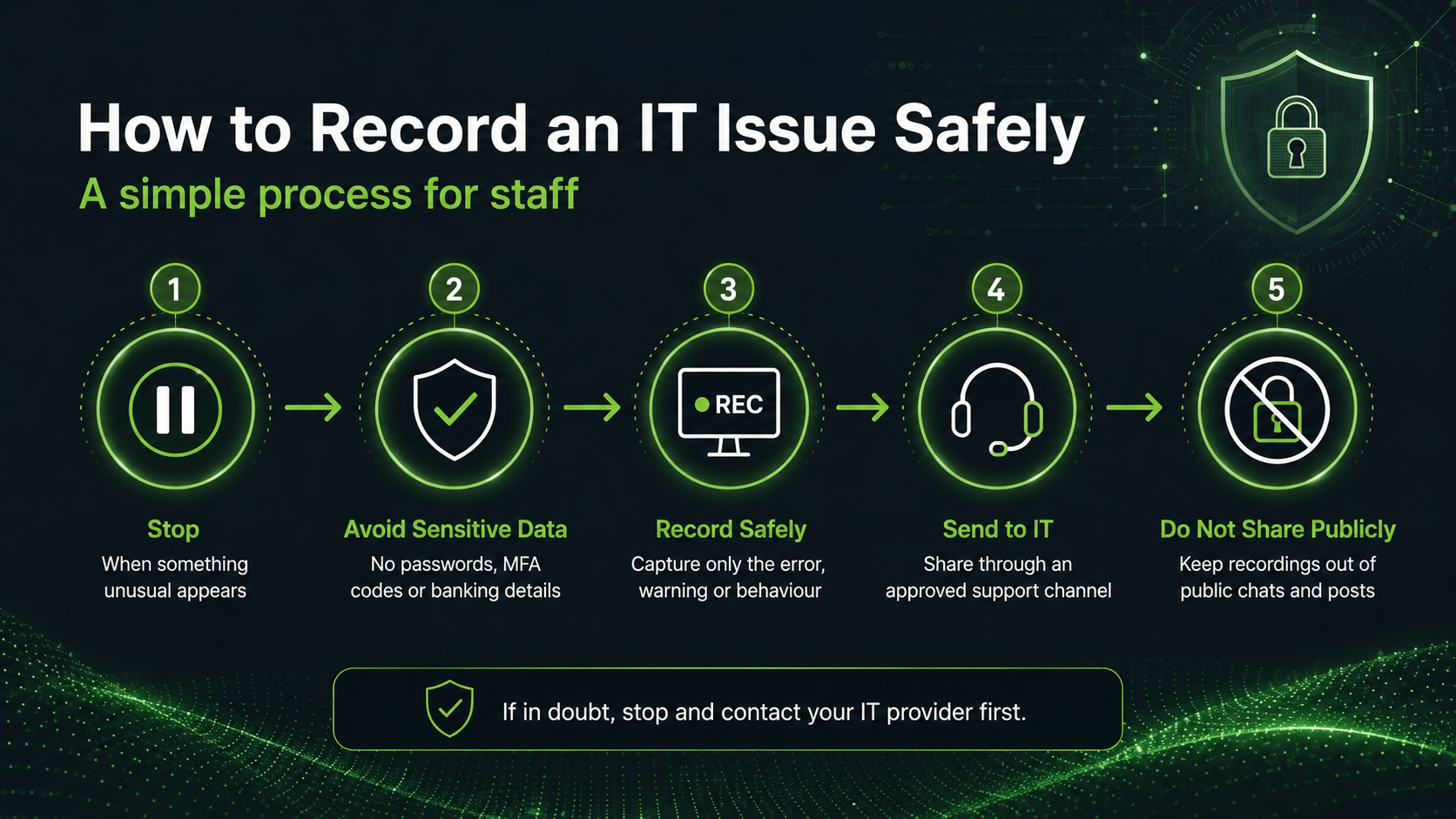
A simple process for staff
For small businesses, the safest approach is to give staff a simple rule:
Record the problem, not the private information.
A practical process might look like this:
- Stop when something unusual appears.
- Do not enter passwords, MFA codes or payment details.
- Start a short recording only if it is safe to do so.
- Capture the error, warning or behaviour.
- Stop the recording as soon as the issue is visible.
- Send the link to your IT provider through an approved support channel.
- Do not post the recording publicly or share it in unsecured chats.
This keeps the recording focused and reduces the chance of exposing sensitive information.
Screen recordings are not a replacement for IT support
A recording does not fix the issue by itself. It simply gives your IT support provider better information.
For small businesses, that can still be valuable. The faster your IT provider understands the problem, the faster they can decide whether it is a user training issue, a device problem, a Microsoft 365 issue, a vendor problem or a possible cyber security incident.
At Intuitive Strategy, we regularly help Melbourne businesses troubleshoot Microsoft 365, email security, device issues, phishing concerns and day-to-day IT support problems. In many cases, the smallest details make the biggest difference.
A short, safe screen recording can help capture those details before they disappear.
Need help reviewing a suspicious email or cyber security issue?
If your business has received a suspicious email, strange Microsoft 365 prompt or unexpected security warning, do not ignore it and do not keep clicking through.
Intuitive Strategy provides practical IT support and cyber security advice for Melbourne small businesses.
Contact our team if you need help reviewing a suspicious email, securing Microsoft 365 or investigating unusual activity on your business systems.