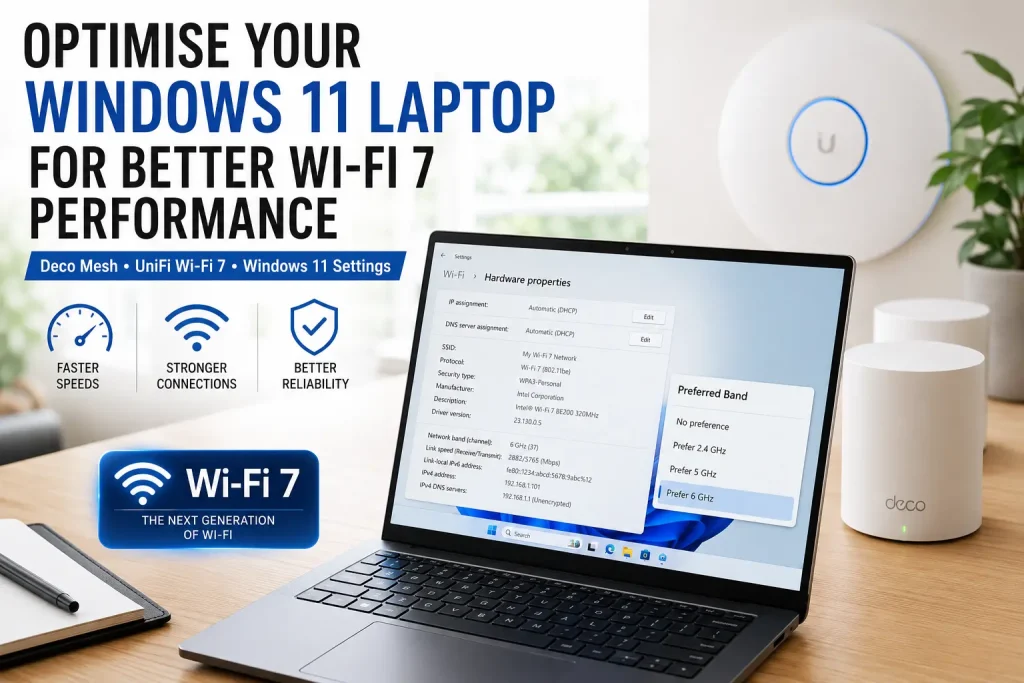
Upgrading to a modern mesh system or Wi-Fi 7 access point can make a huge difference to wireless coverage, speed and reliability. Systems such as TP-Link Deco Wi-Fi 7 mesh and Ubiquiti UniFi U7 access points are a big step up from older ISP routers, especially in homes and small businesses with multiple rooms, thick walls, video calls, cloud backups and lots of connected devices.
But there is one catch: your laptop still needs to connect to the right Wi-Fi band, use the right adapter settings and support the newer Wi-Fi features.
We often see people upgrade their Wi-Fi equipment and then wonder why one Windows 11 laptop still feels slow. In many cases, the mesh system is working properly, but the laptop is holding onto a weaker or slower connection — often 2.4 GHz — instead of using the faster 5 GHz or 6 GHz band.
If you have recently upgraded to Deco Mesh, UniFi Wi-Fi 7 or another modern Wi-Fi system, here are the Windows 11 settings worth checking.
First, make sure your laptop can actually use Wi-Fi 7
A Wi-Fi 7 router or access point does not automatically make every laptop a Wi-Fi 7 device.
To get full Wi-Fi 7 benefits, you generally need:
- Windows 11 version 24H2 or newer
- A Wi-Fi 7 capable wireless adapter
- Up-to-date Wi-Fi drivers
- A Wi-Fi 7 router, mesh system or access point
- WPA3 support, especially for 6 GHz and advanced Wi-Fi 7 features
- A strong enough signal to use 5 GHz or 6 GHz reliably
Many laptops sold over the last few years support Wi-Fi 5, Wi-Fi 6 or Wi-Fi 6E, but not Wi-Fi 7. These devices can still connect to a Wi-Fi 7 router because Wi-Fi 7 equipment is backwards compatible, but they will not get the full Wi-Fi 7 feature set.
To check what your Windows 11 laptop supports, open Command Prompt or Windows Terminal and run:
netsh wlan show drivers
Microsoft also provides a useful guide to checking whether Windows 11, your wireless adapter and your router support Wi-Fi 7 and WPA3.
Look for the section called Radio types supported.
As a rough guide:
802.11acusually means Wi-Fi 5802.11axusually means Wi-Fi 6 or Wi-Fi 6E802.11bemeans Wi-Fi 7
Also check whether WPA3 is supported. This matters because 6 GHz Wi-Fi and many Wi-Fi 7 features depend on modern security settings.
Check which band your laptop is actually using
A common problem after a Wi-Fi upgrade is that the laptop connects to the network, but not to the best band.
Modern mesh systems often use one Wi-Fi name across 2.4 GHz, 5 GHz and sometimes 6 GHz. That is convenient, but it means your laptop and the access point negotiate which band to use.
The issue is that Windows laptops can sometimes cling to 2.4 GHz because the signal looks “stronger”, even though 2.4 GHz is usually slower and more congested.
To check your current band in Windows 11:
- Open Settings
- Go to Network & internet
- Click Wi-Fi
- Click your connected Wi-Fi network
- Look for Network band
If it says 2.4 GHz, your laptop may be connected to the slower band. If it says 5 GHz or 6 GHz, you are more likely to be using the faster part of your Wi-Fi system.
Change the Preferred Band setting in Windows 11
One of the most useful settings to check is Preferred Band.
This setting tells your laptop’s Wi-Fi adapter which frequency band to prioritise when the same Wi-Fi network is available across multiple bands.
To change it:
- Right-click the Start button
- Open Device Manager
- Expand Network adapters
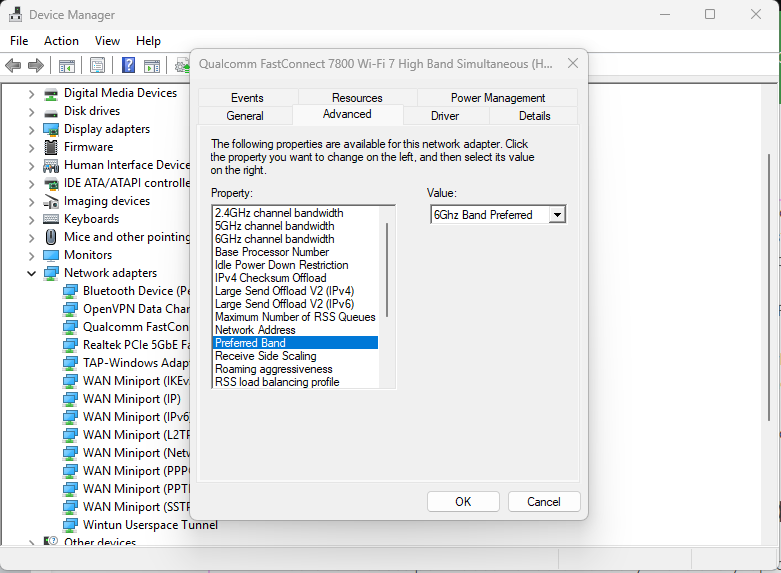
- Find your wireless adapter, such as Intel Wi-Fi, Realtek Wi-Fi, MediaTek Wi-Fi or Qualcomm Wi-Fi
- Right-click the adapter and choose Properties
- Go to the Advanced tab
- Look for Preferred Band
- Choose Prefer 5 GHz or Prefer 6 GHz, depending on what your adapter supports
- Click OK
- Disconnect and reconnect to Wi-Fi, or restart the laptop
For most homes and small businesses, Prefer 5 GHz is a safe choice. It helps keep the laptop away from slow, congested 2.4 GHz while still giving better range than 6 GHz.
If your laptop, router and location all support 6 GHz well, you may prefer 6 GHz for maximum performance. Just remember that 6 GHz has shorter range and does not penetrate walls as well as 2.4 GHz or 5 GHz.
Update your Wi-Fi driver
Windows Update may install a working driver, but it is not always the best or newest driver for your wireless adapter.
If you have upgraded to Wi-Fi 7 and performance is not where it should be, check for Wi-Fi driver updates from:
- Your laptop manufacturer, such as Dell, HP, Lenovo, ASUS, Acer or Microsoft Surface
- The wireless adapter manufacturer, such as Intel, Realtek, Qualcomm or MediaTek
- Windows Update, including optional driver updates
This is especially important for Wi-Fi 7 adapters. Newer drivers can improve stability, roaming, 6 GHz support, WPA3 compatibility and Multi-Link Operation behaviour.
Check the adapter’s advanced settings
While you are in the Wi-Fi adapter’s Advanced tab, check a few other settings.
The exact wording varies depending on your wireless adapter, but these are common options:
Wireless Mode:
Set this to the highest available mode, or leave it on the modern/default option. You do not want the adapter locked to an older Wi-Fi standard unless you are troubleshooting a specific compatibility issue.
Preferred Band:
Set this to Prefer 5 GHz or Prefer 6 GHz where available.
Roaming Aggressiveness:
For a desktop or laptop that usually stays in one room, a lower or medium-low roaming setting can reduce unnecessary jumping between mesh nodes. For a laptop that moves around a business or large home, medium may be more suitable.
Transmit Power:
Set this to the highest available option unless you have a specific reason not to.
Power Saving Mode:
Avoid aggressive Wi-Fi power saving on laptops where performance matters. Power saving can sometimes reduce wireless performance or make roaming less reliable.
Not every adapter exposes every option. If Preferred Band or 6 GHz options are missing, it may be a driver limitation, adapter limitation or manufacturer choice.
Do not expect 6 GHz to work everywhere
Wi-Fi 7 is impressive, but physics still matters.
The 6 GHz band can provide excellent performance in the same room or nearby rooms, especially with compatible laptops and access points. However, it generally has less range than 5 GHz and much less range than 2.4 GHz.
That means a laptop may perform better on 5 GHz than 6 GHz if you are several rooms away from the access point.
This is why proper access point placement matters. For UniFi installations, ceiling or wall placement, Ethernet backhaul and correct access point spacing can make a bigger difference than simply buying a newer access point. For Deco Mesh systems, node placement and backhaul quality are critical.
If you are building, renovating or running Ethernet cabling, it is worth planning your access point locations properly before relying on mesh placement alone.
Avoid placing mesh nodes:
- Behind TVs
- Inside cupboards
- On the floor
- Next to microwaves
- Too far from the main node
- In locations where they only receive a weak signal from each other
Where possible, use Ethernet backhaul between mesh nodes or access points. Wi-Fi 7 can be fast, but wired backhaul is still the best foundation for a reliable wireless network.
Deco Mesh users: check MLO and band settings
TP-Link Deco Wi-Fi 7 systems may include features such as MLO, band preferences and node preferences depending on the model and firmware.
MLO, or Multi-Link Operation, is one of Wi-Fi 7’s headline features. It allows compatible devices to use more than one band to improve performance, latency and stability.
However, MLO only helps if the client device supports it. Many older laptops will still connect normally using 2.4 GHz, 5 GHz or 6 GHz without MLO.
In the Deco app, check:
- Whether your Wi-Fi 7 Deco units have the latest firmware
- Whether the MLO network is enabled
- Whether the laptop is connected to the expected Deco node
- Whether the laptop is using 2.4 GHz, 5 GHz or 6 GHz
- Whether device priority or QoS is limiting performance
For best results, keep older smart devices, printers and IoT equipment away from your main high-performance Wi-Fi where possible. A separate IoT or guest network can help keep the main Wi-Fi cleaner for laptops, phones and work devices.
UniFi users: check 6 GHz, WPA3 and MLO settings
With UniFi Wi-Fi 7 access points, such as the UniFi U7 range, the controller settings matter.
In UniFi Network, review:
- Whether the access point firmware is up to date
- Whether 6 GHz is enabled where supported
- Whether the SSID uses WPA3 or WPA2/WPA3 transition mode
- Whether PMF is enabled as required
- Whether MLO is enabled for Wi-Fi 7 clients
- Whether band steering is enabled
- Whether legacy IoT devices should be moved to a separate SSID
A good approach is often to have:
- A main SSID for modern laptops and phones
- A separate IoT SSID for printers, smart devices and older equipment
- A guest SSID for visitors
This reduces compatibility problems and helps modern devices use the faster bands without being held back by older devices.
Test properly before and after changes
When testing Wi-Fi performance, avoid relying on one random speed test.
For a better comparison:
- Restart the laptop
- Stand in the same location each time
- Check which band the laptop is using
- Run two or three speed tests
- Test again near the access point
- Compare results against a wired device if possible
Also remember that an internet speed test measures more than Wi-Fi. It can be affected by your NBN plan, modem, router, ISP congestion, VPN, browser, antivirus software or the speed test server.
If you want to test the Wi-Fi itself, local network testing is better, such as copying a large file to a local NAS or using a proper network testing tool.
A quick security note: check WPS while you are upgrading
While you are optimising Wi-Fi settings, it is also worth checking whether WPS is enabled on your router.
WPS, or Wi-Fi Protected Setup, was created to make it easier to connect devices without typing a long Wi-Fi password. Unfortunately, WPS — especially PIN-based WPS — has a long history of security weaknesses and brute-force attacks.
If your router or mesh system allows WPS to be disabled, we generally recommend turning it off unless you specifically need it for a short setup window.
A better approach is to use:
- A strong Wi-Fi password
- WPA3 where supported
- A guest network for visitors
- A separate IoT network for smart devices and printers
- Updated router and access point firmware
For business networks, WPS should generally be avoided completely.
When to call an IT or Wi-Fi specialist
If you have upgraded to Wi-Fi 7 and still have poor performance, the issue may not be a single Windows setting.
Common causes include:
- Poor mesh node placement
- Weak backhaul between mesh units
- Old laptop Wi-Fi adapter
- Outdated Wi-Fi drivers
- Interference from neighbouring networks
- Thick walls or multi-level building layout
- Incorrect UniFi or Deco settings
- Devices connecting to the wrong access point
- NBN or ISP speed limitations
- Network cabling or switch bottlenecks
For homes and small businesses in Melbourne, Intuitive Strategy can help assess Wi-Fi coverage, optimise Deco Mesh or UniFi access points, improve laptop performance and separate business, guest and IoT devices properly.
A Wi-Fi 7 upgrade should make your network feel faster and more reliable — but only when the laptop, access point, security settings and physical layout are all working together.