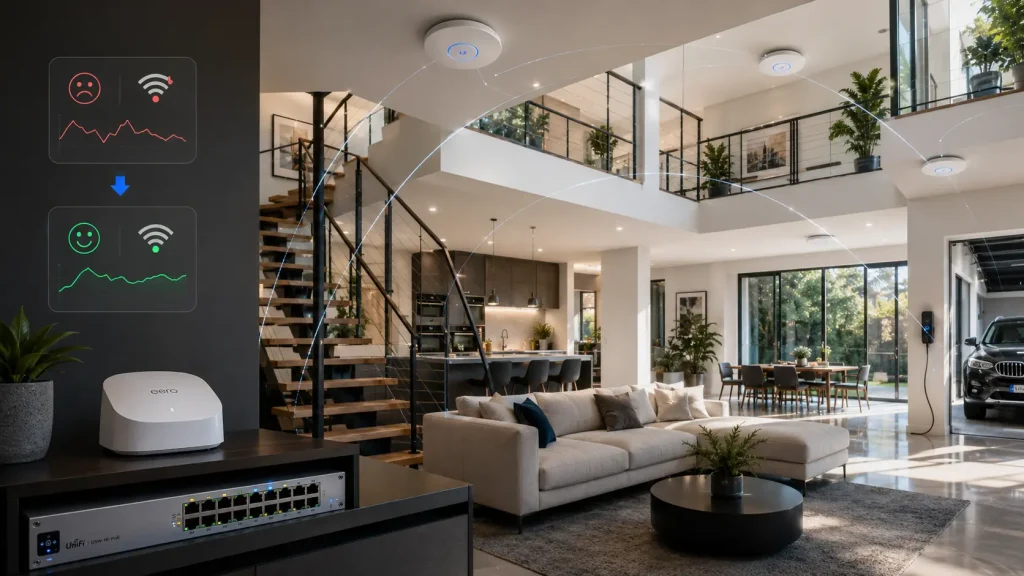
We were recently called out to a large home in Kew East where the client was experiencing slow Wi-Fi speeds, drop-outs and inconsistent performance around the house.
The home already had a reasonably advanced network setup installed. The internet service was with Aussie Broadband, the main router was an Eero router, and there were four UniFi access points connected back to an enterprise 16-port Ubiquiti Edge PoE+ switch.
On paper, this should have delivered strong Wi-Fi coverage across the property.
However, the way the equipment had been configured was causing several issues. The client was often only seeing around 220Mbps over Wi-Fi, devices were not roaming smoothly between access points, and the network was difficult to manage because the UniFi access points were not properly adopted into a working UniFi controller.
This type of issue is exactly why we provide UniFi Wi-Fi support in Melbourne for larger homes and businesses that need more than a basic router setup.
The problem
The first major issue was that the Eero router and the UniFi access points were broadcasting the same Wi-Fi network name.
Using the same Wi-Fi name across multiple access points is not automatically a problem. In fact, it is normally how a properly designed Wi-Fi network should work. The issue here was that the Eero and UniFi access points were not being managed as one system.
This meant the home effectively had two different Wi-Fi systems broadcasting the same network name. Devices could connect to either system, which created roaming confusion, inconsistent performance and drop-outs as the client moved around the property.
The second issue was that the UniFi access points were not properly adopted into the UniFi controller. The controller was running from a very old MacBook Air, and there was no dedicated UniFi gateway or hardware controller managing the network properly.
Without the UniFi access points being adopted and named correctly, it was difficult for the client to see which devices were connected to which access point. This also made troubleshooting much harder.
The third issue was band selection. Many devices were connecting to the 2.4GHz Wi-Fi band instead of the faster 5GHz band.
2.4GHz can travel further through walls, but it is usually slower and more congested. In this case, it was one of the reasons the client was only seeing around 220Mbps most of the time, even though the network had the potential to perform better.
A proper Wi-Fi health check can help identify whether the issue is the internet connection, router, access points, channel settings or the way devices are roaming between them.
What We Found Onsite
After reviewing the setup, we found:
- The Eero router was broadcasting the same Wi-Fi name as the UniFi access points.
- The UniFi access points were not properly adopted into a central UniFi controller.
- The controller was running on an old MacBook Air instead of a proper UniFi gateway or dedicated controller.
- Devices were often connecting to 2.4GHz instead of 5GHz.
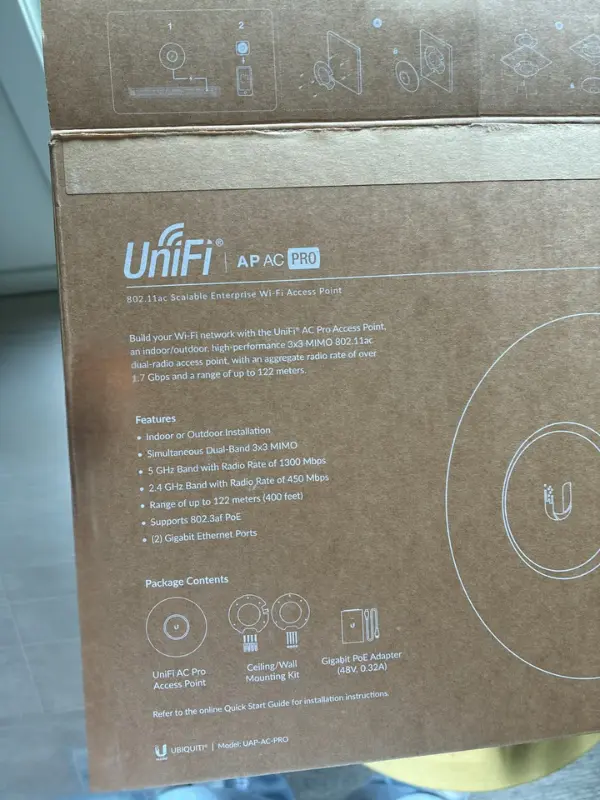
- The access points were older UniFi AC Pro models.
- The client had limited visibility over which devices were connected to which access point.
- Roaming between access points was not working smoothly.
This is a common situation in larger homes where Wi-Fi systems have been added to over time. A router gets installed, then a mesh system is added, then access points are installed later. Eventually, the property ends up with overlapping Wi-Fi systems, old equipment and inconsistent performance.
What We Did
The first step was to clean up the UniFi environment.
We reset each UniFi access point and adopted them properly into the UniFi controller as part of the UniFi access point troubleshooting process.
This makes a big difference for future troubleshooting. Instead of seeing a list of unnamed access points, the client can now identify whether a device is connected to the correct part of the house.
We then adjusted the Wi-Fi settings to encourage compatible devices to use the 5GHz band where possible.
For the 2.4GHz network, we reduced the channel width from 40MHz to 20MHz. This is usually the better option for 2.4GHz because it helps reduce interference and improves stability, especially in larger homes or areas where there are neighbouring Wi-Fi networks.
We also tuned the 5GHz settings to improve performance for compatible devices such as laptops, phones, smart TVs and gaming consoles.
Because the Eero router did not provide the level of Wi-Fi control we needed in this setup, we changed the Eero Wi-Fi network name to something completely different. This stopped it from competing with the main UniFi Wi-Fi network.
Importantly, we kept the main UniFi Wi-Fi network name the same.
This meant the client’s existing devices — including computers, TVs, IoT devices and gaming consoles — could continue reconnecting without needing to be manually reconfigured.
Why Keeping the Same Wi-Fi Name Helped
In many homes, changing the main Wi-Fi name can create unnecessary work.
Every smart TV, security device, printer, laptop, gaming console, phone, tablet and IoT device may need to be manually reconnected. In a large home, this can quickly become time-consuming and frustrating.
This is one of the reasons we approach home and business IT support carefully — small network changes can affect dozens of devices in a modern home.
Because the main UniFi Wi-Fi name was kept the same, the client’s devices could continue using the existing saved Wi-Fi details.
The difference was that the network behind that Wi-Fi name was now cleaner, better managed and no longer being duplicated by the Eero router.
The Result
After the UniFi access points were reset, adopted and configured correctly, the network became much easier to manage.
The client could now see the access points properly inside the UniFi controller, identify which devices were connected to which access point, and avoid the confusion caused by the Eero router broadcasting the same Wi-Fi name.
The changes also helped encourage more devices to use the faster 5GHz band instead of falling back to 2.4GHz unnecessarily.
However, later that day the client still noticed some roaming issues when moving around the house. Devices were not always reconnecting quickly enough to the closest access point.
This is often a sign that the existing access points are reaching their practical limit, especially in a large home with many connected devices and modern speed expectations.
The UniFi AC Pro access points were excellent units in their time, but they are older Wi-Fi 5 access points. For a large home that now expects faster speeds, better roaming and stronger device handling, an upgrade makes sense.
Recommended Upgrade
For the next stage, we recommended replacing the older UniFi AC Pro access points with newer UniFi U7 access points to improve performance for modern devices.
We also recommended replacing the Eero router with a UniFi Dream Machine Pro so the network could be managed properly from one UniFi gateway and controller.
The UniFi Dream Machine Pro would act as the main UniFi gateway and controller, removing the need to rely on an old MacBook Air to manage the network. This gives the client a cleaner and more reliable UniFi setup with better visibility, better control and easier long-term management.
The newer UniFi U7 access points would provide improved Wi-Fi performance for modern devices, including better support for newer Wi-Fi standards, stronger capacity and improved performance in a busy household.
The goal is not just faster Wi-Fi. The goal is a properly managed home network where the router, switch, access points and controller all work together as one system.
Why This Type of Wi-Fi Issue Happens
Many larger homes have Wi-Fi problems even when they already have expensive networking equipment installed.
This is why large home Wi-Fi design should be planned properly, especially during renovations, extensions or new builds where access point locations and cabling can be considered early.
The issue is often not the internet provider. It is usually the way the network has been designed, installed or configured.
Common causes include:
- Multiple Wi-Fi systems broadcasting the same network name without being centrally managed.
- Old access points that no longer suit the size or usage of the home.
- Devices clinging to 2.4GHz instead of using 5GHz.
- Access points that are not properly adopted into a controller.
- Poor roaming between access points.
- Routers, switches and access points from different ecosystems working against each other.
- No clear naming or documentation for network equipment.
- Old controllers running on outdated computers.
In this Kew East home, the equipment was not terrible. The issue was that it had not been brought together into one properly managed UniFi network.
A properly designed UniFi network can work extremely well in large homes, but it needs to be configured properly.
Access points should be adopted, named, updated and tuned. The router and controller should be reliable. The Wi-Fi settings should suit the property, the number of devices and the type of internet connection being used.
For larger homes, it is also important to think about roaming. Good Wi-Fi is not just about standing near one access point and getting a fast speed test. It is about moving through the home and staying connected to the best access point as you go.
That is where proper UniFi planning and configuration makes a big difference.
Need Help With UniFi Wi-Fi in Melbourne?
If your home or business is experiencing slow Wi-Fi, drop-outs, poor roaming or UniFi access point issues, Intuitive Strategy can help.
We provide UniFi and Ubiquiti Wi-Fi support across Melbourne, including:
- UniFi access point troubleshooting
- UniFi controller setup
- Access point adoption and configuration
- Wi-Fi speed testing
- Wi-Fi roaming improvements
- UniFi Dream Machine setup
- UniFi U7 access point upgrades
- Large home Wi-Fi design
- Business Wi-Fi support
If your Wi-Fi network has been built up over time and no longer performs the way it should, we can review the setup, identify the cause of the issue and recommend the best path forward.
A faster internet plan will not always fix poor Wi-Fi. In many cases, the real fix is a cleaner, better managed network.